Shadowrocket isn't available in the mainland China storefront. If you can't find it, check the country or region of the Apple Account used for App Store purchases instead of repeatedly changing your search terms. Your device's language, your physical location, and your App Store account region are separate settings. Changing the device language to English doesn't switch storefronts. App availability, currency, and payment requirements depend on the storefront linked to your account.
How to check your country or region
On your iPhone or iPad, open Settings, tap your name at the top, then choose “Media & Purchases.” Open the account view and find “Country/Region.” Follow any verification prompts, then check the country or region shown. Some system versions may label the intermediate option “View Account.” Check the region for your media and purchases account, not the regional format in your device's general settings.
- Open Settings, tap your Apple Account, and make sure you're viewing your own account.
- Open “Media & Purchases” and check which account is in use there. It may differ from the account used for other system services.
- Open the account view, go to “Country/Region,” and check the storefront linked to your account.
- If you need to change it, use the country or region option on that page and review each condition and prompt.
Changing your country or region may depend on your account status, balance, active subscriptions, payment method, and Family Sharing settings. If the page lists items you need to address first, take care of them before continuing. These steps show where to check and what to review; they don't guarantee that every account can change regions immediately, and changing regions isn't required for every app purchase. Follow the information for your account and keep control of your purchase account and payment details.
Opening the product page doesn't mean your account can buy the app
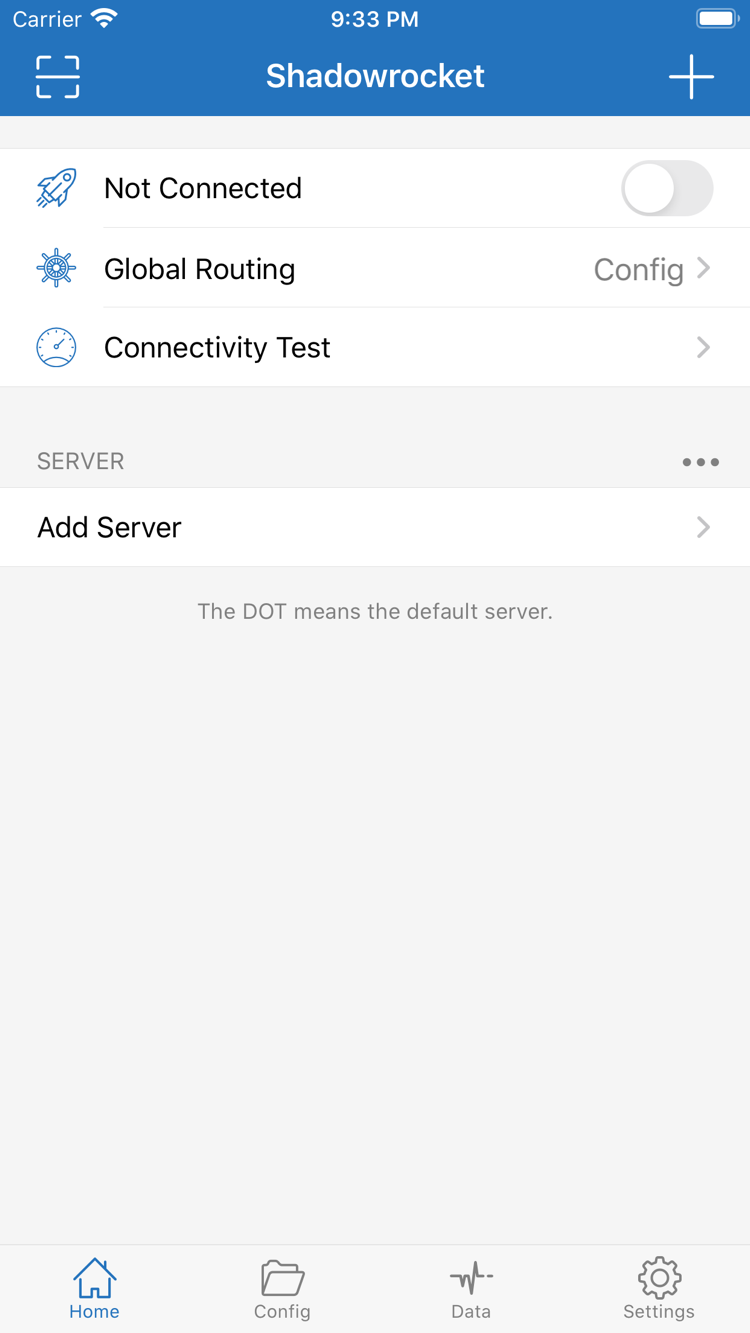
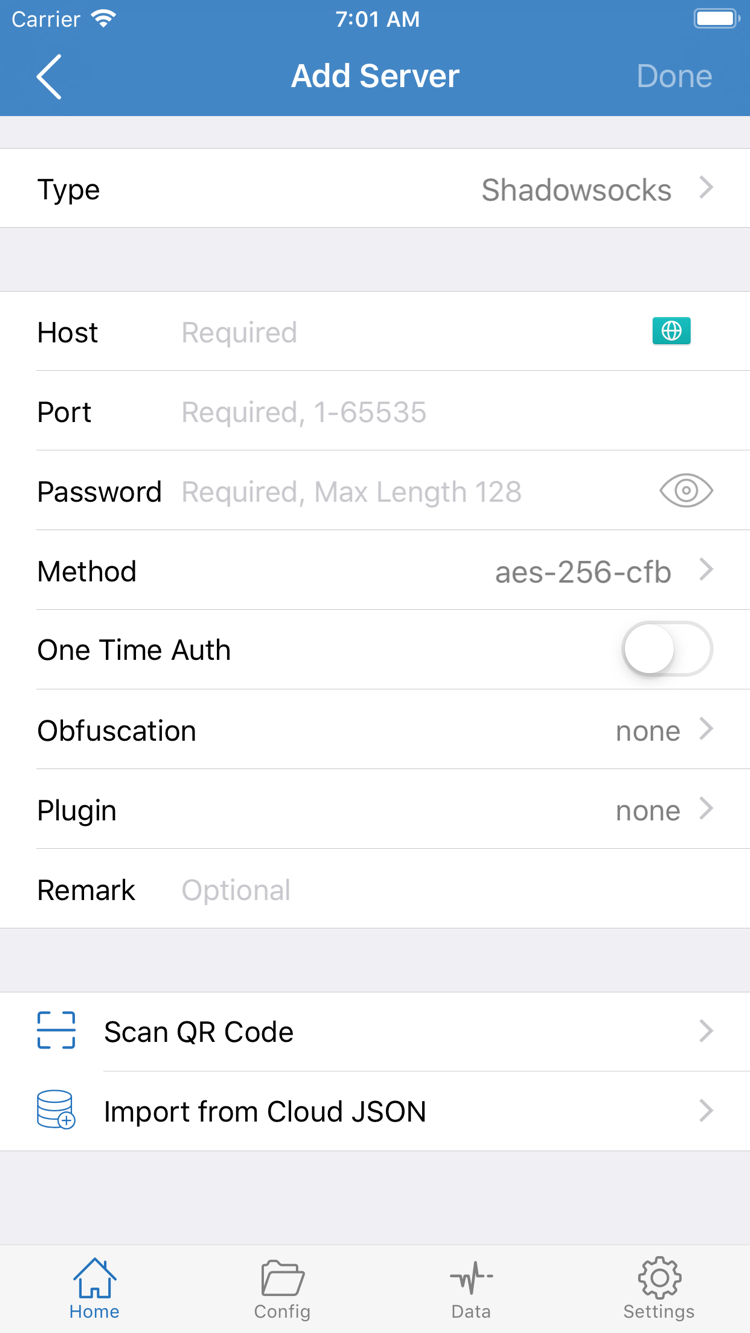
The App Store button on this page links to the same Shadowrocket product page. A browser may show details for a particular storefront, but the App Store on your device checks availability against the signed-in account. If you see a message such as “This app is not available in your country or region,” check your account region using the steps above. If the message asks you to update payment details, follow the account page prompts; a payment issue doesn't mean the app identity is incorrect.
Before buying, confirm which account your device uses for purchases. You'll need that account's purchase history if you restore the app on another device. If several family members use the device, don't assume the person signed in owns the app just because its icon is on the Home Screen; check the purchase history in the App Store account. For more details about regions and purchases, read the App Store Guide.