Store availability and app visibility
Separate the store, language, and device location
Whether Shadowrocket appears in the App Store depends first on the country or region associated with the Apple Account used for purchases and the app’s availability in that storefront. Using a device in Chinese, setting its time zone to a particular city, or opening a product page for a particular storefront in a browser does not establish which store the account is using. Check the account settings and what the App Store actually displays; don’t infer the storefront from the page language.
The same app may have product pages for different storefronts, with different currencies, descriptions, and availability. This guide refers to the product page with app ID 932747118. The region segment in the URL selects the web storefront; it does not change the account’s region. Seeing the product page in a browser does not mean the current account can purchase the app. In the App Store, check the availability, price, and purchase prompts shown by the system.
A missing search result doesn’t mean the app is unavailable
Search results depend on the search terms, storefront, and page state. Searching for a nickname may show related results or other apps with similar names. Searching for Shadowrocket in full can make it easier to find, but ranking alone doesn’t verify an app’s identity. If search comes up empty, open the specified product page using the App Store link on the official download page, then follow the message shown. Don’t draw conclusions from search results alone.
If the product page says the app isn’t available in your country or region, treat it as a storefront availability issue. Repeated searches, restarting the app, or changing the device language usually won’t change which storefront the account belongs to. First check your account in the next section to confirm you’re viewing the expected store. If you are, rely on the App Store’s current availability. This guide does not make blanket claims about long-term availability in any region.
Check compatibility separately from regional availability
Sometimes the product page opens, but the app can’t be obtained on the current device. This may involve system requirements, device type, or account restrictions—not just region. Shadowrocket is primarily for iPhone and iPad. For Mac, Apple TV, and Apple Vision, check the compatibility section on the same product page. System requirements are as listed on the App Store page. Don’t assume your device meets every requirement just because the app installs on another device.
| What you see | Check first | You can’t conclude that |
|---|---|---|
| The app doesn’t appear in search | Full app name, account storefront, specified product page | The app has been removed from every storefront |
| The web page opens, but the App Store says the app isn’t available | Country or region of the account used for purchases | The web page’s region matches the account’s region |
| The page is visible, but the device can’t get the app | Compatibility, system requirements, device restrictions | Searching again will fix it |
When documenting the issue, replace “can’t find it” with a specific description, such as: “The product page opens, but the App Store says it isn’t available in my region.” This records the entry point, the stage, and the system’s response, so you can check the account storefront directly instead of guessing about the network or purchase history. If the message appeared only once, check again when the network is stable. Avoid changing several things at once, or you won’t know what made a difference.
How to check your App Store storefront
Confirm which account is used for purchases
When checking the storefront, confirm the Apple Account used for “Media & Purchases,” rather than relying only on the account name at the top of your device. The account used for cloud syncing and the one used for App Store purchases may need to be checked separately. A past purchase on another device doesn’t prove that this device is using the same account. Open Settings, find “Media & Purchases” in the account settings, open the account details, and check the listed account and country or region.
Settings labels and menu locations may change. Follow what appears on your device. If you’re asked to verify your account, use the system’s verification process. Never enter verification codes, passwords, or complete purchase details into a website form or public discussion. The goal is to check your own account status; you don’t need to share your full identity details with anyone or enter account information in this guide.
Cross-check account details against the App Store
In your account details, note the country or region, then return to the App Store and check the currency shown for the app. Currency can reveal an obvious mismatch, but it’s only a clue: different regions may use the same currency, and a browser may still show a previously visited storefront. Use the region shown in your account settings as the primary reference, then check the App Store’s purchase prompt. A price in US dollars alone does not confirm that all account requirements are met.
If the system asks whether to switch storefronts after you open the product page from a browser, read the prompt carefully. Check whether it changes only the displayed storefront or asks you to change account settings. Don’t confirm every option just to make the page look consistent. You can leave the purchase flow, check your account region and purchase history, and decide what to do next. If you already own the app, check your purchases first so you don’t mistake an account issue for a first-time purchase.
Changing your region is not a universal fix
Changing an account’s country or region may involve account balance, active subscriptions, payment methods, Family Sharing, and other requirements. Check your account page for eligibility and required steps. This guide doesn’t recommend changing regions as the first response to every App Store error. If the actual issue is a slow network, low storage, or device compatibility, changing the account region won’t address it and will introduce more variables.
Some details may be unavailable for editing if the account is subject to Family Sharing or device management. First check who manages the device and whether a purchase requires approval from an organizer or parent. A grayed-out option doesn’t necessarily mean the account is broken; it may be restricted by design. Avoid repeatedly signing out to test the restriction, as this can make it harder to track the original purchase account. Leave the current state unchanged, read the on-screen explanation, and check whether someone with the right permissions needs to approve the change.
After checking, keep a note that doesn’t include sensitive information: whether this is the expected purchase account, whether its region is clear, what the product page shows, and whether there’s a purchase record. Use a personal label for the account; there’s no need to copy the full address. If you’re checking another device, repeat the steps on that device rather than assuming both use the same purchase account. This helps explain why the same app may show different buttons on two devices.
After checking the account, continue to verifying the app and making a purchase. If you’re restoring an app you bought before, go straight to New device and restore purchases. For a first-time purchase, check the developer, icon, and app ID. Keeping these steps separate helps distinguish “which store am I using?” from “which app am I buying?”
Verify the official app: developer, icon, and app ID
Verify on the product page, not by search ranking
Check three details on the product page to verify the app: the developer is Shadow Launch Technology Limited, the icon matches the official icon shown here, and the app ID is 932747118. The name can help you find the app, but it doesn’t verify it on its own. Search ranking, keywords in the description, and a similar-looking icon are not substitutes for these three checks. Before paying, review each one on the full product page.
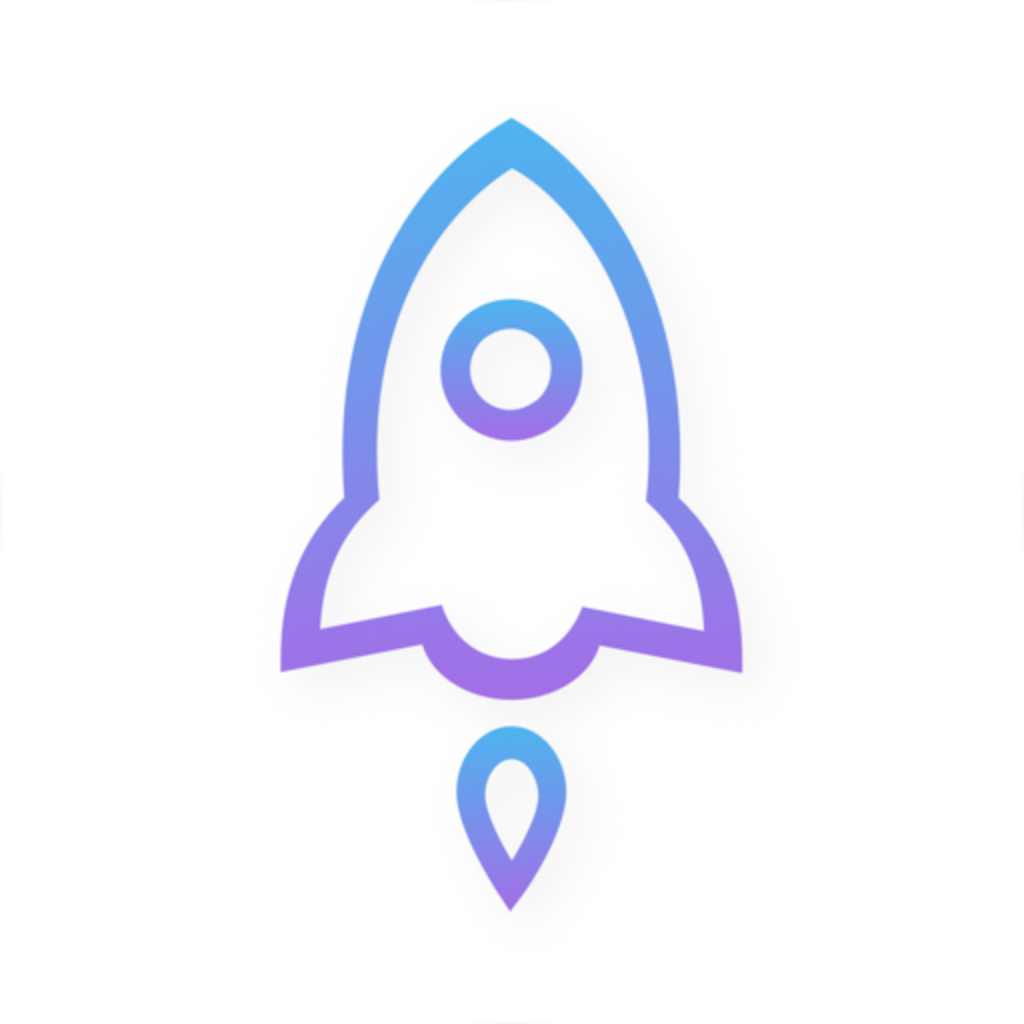
Shadowrocket
Shadow Launch Technology Limited
id932747118
Check the developer in the developer or provider section of the App Store product page, not just in a search result snippet. If the company name doesn’t match, stop before purchasing and use the official app verification guide to find the right product. Check the full spelling; one or two shared words don’t make two names the same. Generic descriptions mentioning rules or proxies don’t verify an app’s identity either.
The icon and product URL serve different verification purposes
The official icon is a rocket with a blue-purple outline on a white background. This guide uses the same official icon as a visual reference. Checking the icon can reveal an obvious mismatch, but similar designs can be misleading, so always check it alongside the developer and app ID. If the icon is too small, open the product page to view it at a larger size rather than relying on a thumbnail in device search results. If screen rendering makes the colors hard to judge, prioritize the app’s text details.
The app ID appears in the product URL as id932747118. The text in the URL that corresponds to the product name may vary by display format, but this number identifies the app. Check the full product URL, not just the browser title. If you received a screenshot or a description, open the specified link on this site on your own device to view the actual product page. A screenshot can’t confirm where a button leads.
Product name: Shadowrocket
Developer: Shadow Launch Technology Limited
App ID: 932747118
End of product page URL: id932747118
Check the app’s identity separately from purchase eligibility
After verifying the three details, check the price, compatibility, and whether your current account can make the purchase. These are access requirements, not part of the app’s identity. The official product page may still be unavailable because of the current storefront or device conditions. Conversely, a similarly named app that lets you pay immediately isn’t necessarily the one you’re looking for. Checking identity separately from eligibility avoids the assumption that a working purchase button means you have the right app. If anything doesn’t match, stop and verify before proceeding.
The product page’s version notes and description can help you understand the current app, but this guide doesn’t use specific version numbers, release dates, or ratings as proof of identity. They can change and aren’t stable identifiers. If an older guide shows a different icon, button location, or interface text, check the stable app details first, then follow what the current App Store page and app actually show. There’s no need to find an older interface to match an old screenshot.
After verification, remember the developer and app ID rather than saving only a search term. These details remain useful when changing devices, helping a family member check the app, or checking compatibility on another Apple device. Don’t include subscription names, server names, or configuration file names in app verification; those belong to your own connection details and have no bearing on the developer listed on the App Store.
Purchasing the app: what the one-time purchase covers
Check the price before completing payment
Shadowrocket is a paid App Store app with a one-time purchase. The US storefront reference price is $2.99; other storefronts show prices in local currency. The amount you’ll pay is the one shown on the purchase confirmation screen. Taxes and payment settlement may affect the final charge, so don’t assume the reference price is the final amount in every region or on every account. Verify the app’s identity, then review the product and amount in the system purchase prompt.
After tapping the price button, follow the App Store’s verification steps. The system may request device or account authentication, payment method confirmation, or approval for a family purchase. Read each prompt before proceeding. Count the purchase as complete only when the payment flow confirms it and the product appears in the relevant purchase history. A spinning button, a closed verification window, or a delayed bank notification alone doesn’t confirm the outcome.
A purchase failure and a download failure happen at different stages
If the system reports a payment method issue, check the payment details and any pending items on the purchase account first. Don’t repeatedly retry the purchase before resolving the same error, and don’t pay again just because the download hasn’t started. Check your purchase history to see whether the transaction is complete, pending, or missing. If the status is unclear, keep the message and approximate time, then pause until the status is clear. This helps avoid mistaking a delay for multiple failed purchases.
Even after payment completes, the download may be delayed by network conditions, available storage, or the download queue. Troubleshoot the download instead of tapping the price button again. Likewise, an app icon on your device doesn’t prove that the current account has a purchase record; it may be left over from an earlier device state or an incomplete restore. Check “Do I have the purchase entitlement?” and “Is the app installed?” separately—they’re different issues.
App purchases and connection details are managed separately
Paying through the App Store doesn’t create a usable entry in the SERVER section of Home or fill in a server address, authentication details, or subscription URL. Being able to open the app and having valid connection details are separate things to check. If it’s installed and you’re unsure what to do next, follow the quick start guide and choose an import method that matches your details. Don’t return to the store looking for another purchase step.
A one-time purchase doesn’t mean the app will permanently retain everything you add locally. Configurations, subscription entries, and connection parameters each have their own backup and migration requirements. Before reinstalling, use the app’s available features to protect your personal details. The store purchase record confirms your entitlement; it isn’t a configuration backup. Keep these records separate so you can restore the app and know which personal settings still need to be recovered when changing devices.
Get app updates through the App Store. Automatic updates depend on your device and store settings; to check manually, return to the same product page. If an update asks you to verify your account, check that the current store account matches the original purchase account. Don’t assume verification means you’ll be charged again. For refund or billing issues, use the order support option shown in your App Store account. Eligibility and outcomes depend on the system process; this guide makes no refund guarantees.
Before purchasing, run through four final checks: Does the app identity match? Have you reviewed the current price? Are you using the intended account? Do you understand the difference between buying the app and having connection details? Once all four are clear, confirm the purchase. This is more straightforward than investigating account issues afterward and provides a clear basis for restoring the app later.
New device, reinstall, and restoring purchases
Restore the app entitlement first, then your personal configuration
Treat a device transfer as two separate tasks: first, get Shadowrocket again from the App Store; second, restore your own subscriptions, server details, and configurations. The first depends on your purchase history, account, and current storefront conditions. The second depends on details available from your old device, backups you’ve made, or connection information you still have. Seeing the app on your Home Screen doesn’t mean your personal details have been restored. Before migrating, make sure you can still access anything important on the old device.
On the new device, open the App Store, go to your account, and find the apps or purchases list. Search for Shadowrocket. The relevant sections may be grouped differently across system versions; follow the labels and locations shown on your device. Confirm you’re using the original purchase account, find the app, and verify the developer and product details again. Then use the redownload button shown on the page. Don’t assume a past purchase is gone just because the search result displays a price.
If the purchase isn’t listed, check account identity and visibility
If nothing appears in the purchases list, check your account first, then make sure the list is showing the right scope—for example, personal purchases or a family member’s purchases. Next, check your purchase history to confirm the transaction completed and that the product was app ID 932747118. The purchases list and billing history serve different purposes: the first helps you redownload an app, while the second helps verify the transaction. A temporary absence from one list doesn’t disprove a record in the other.
Some apps can be hidden from the usual purchases list. If you’ve hidden apps before, check the hidden purchases section in your account. Whether you can unhide or redownload the app depends on the options currently available in your account. Storefront availability is another factor: a past purchase doesn’t guarantee immediate redownload in every region or on every device. Keep any restriction message and check its cause instead of trying to buy the app again.
After redownloading, check your configuration one item at a time
Once the app is installed, open Home and check whether the SERVER section contains the expected entries. Then open Config and check for the configurations you need. If either is empty, use your saved details and the app’s available import features to restore them. Subscription URLs may contain personal authentication details; don’t post them publicly or send them to people who don’t need them. If an old URL no longer works, check with the service you already use. Restoring the app from the store doesn’t update connection details.
Even if the device transfer brought over some app data, verify it item by item before connecting. Check the selected server, subscription update status, current Config, and whether Global Routing matches your plan. Some permissions or runtime states from the old device may need to be confirmed again on the new one. When you first enable a connection, respond to the system prompts on the new device. There’s no need to keep toggling settings to reproduce the old device’s state.
If the product page still shows a price even though you believe you bought the app, exit the purchase confirmation and check that the current store account matches the account on the original order. If they match, check the transaction status and whether the purchase came through Family Sharing. These entitlements have different restore paths. Don’t rely only on your memory of a payment notification; you may be remembering an order for another app from around the same time.
Use specific criteria to confirm a successful restore: the App Store recognizes the correct entitlement, the app opens, your personal details have been restored as needed, and the connection has been checked separately. If only some steps are complete, note which stage remains. For first launch and the Home screen, see VPN configuration permission and the Home screen to keep store restore issues separate from connection settings.
Family Sharing and family purchase requirements
Check app support, then check Family Sharing settings
To find out whether Family Sharing applies to this purchase, check both the App Store product page and the family’s current settings, including Purchase Sharing. A one-time purchase doesn’t automatically mean every family member can get the app, and belonging to the same family doesn’t mean Purchase Sharing is enabled. Check the product page, the family setup and sharing status, then look for the app in the family member’s own App Store account.
This guide doesn’t present Family Sharing as a way to get the app without conditions. Product support, account country or region, family membership, and organizer settings can all affect the outcome. Follow the requirements listed in the App Store and Family Sharing settings. If the product page doesn’t clearly confirm eligibility, don’t rely on an old article or another person’s experience as a guarantee. Even if one family member got the app, each other member still needs to check their own account and device requirements.
Find family purchases in each member’s own account
Each family member should use their own Apple Account. In the App Store account page, open the family purchases list and select the member who made the purchase, then look for Shadowrocket. Menu names and locations may vary; follow what the current page shows. When you find the app, check the developer and app ID to confirm it’s the right product, then follow the available get option. Don’t skip either the Family Sharing eligibility check or the app identity check.
If the app isn’t in a member’s purchases list, first check that you selected the right purchaser, then confirm that the purchaser has a completed transaction. Hidden purchases, Purchase Sharing being off, and a member’s regional restrictions can look similar. Have the person with the relevant permissions check their own settings instead of repeatedly trying from someone else’s device. After changing one setting, return to the same page to check the result. Avoid changing several things at once.
Handle purchase approval separately from sharing eligibility
If Ask to Buy is enabled, the organizer or parent may need to approve the request. Waiting for approval isn’t a download problem or a failed card payment. Check the request status on the device and confirm whether it was sent or is still pending. Don’t submit the same request repeatedly or mistake pending approval for a need to buy the app again. Whether the app can be obtained depends on the family permissions and the system’s response.
| What to check | Details to confirm | Where to check |
|---|---|---|
| App | Whether the app currently supports the relevant Family Sharing feature | App Store product page |
| Family | Membership, Purchase Sharing, and approval settings | System Family Sharing settings |
| Purchaser | Completed purchase and item visibility | Purchaser’s account page |
| Family member getting the app | Their own region, device, and entitlement requirements | Member’s account and device |
An app obtained through Family Sharing is different from one purchased independently on your own account. If family membership or Purchase Sharing changes, future redownloads, updates, or access may depend on the system’s current rules and prompts. This guide doesn’t guarantee continued access after a change to family arrangements. When troubleshooting, note how the app was originally obtained; don’t mistake an item in the family purchases list for a separate transaction on your own account.
Sharing access to the app doesn’t mean family members should share personal connection details. Each member must manage their subscriptions, server authentication, and configurations within their own authorization. Don’t copy someone else’s sensitive details just to make the app look the same. A Shadowrocket purchase entitlement and a user’s own connection details are separate things. Family Sharing doesn’t create those details for each member or replace the access requirements for a personal server.
After checking Family Sharing, follow the usual first-launch steps in the app. If the app installs but won’t connect, leave the store troubleshooting path and follow the guide to check your imported details and Global Routing. If you can’t get the app from the family purchases list, continue checking product support, account eligibility, and family permissions. This distinction prevents repeated changes to family settings when the actual problem is at a different stage.
Troubleshoot missing search results, stalled downloads, and account status
Choose your first check based on where the process stopped
Write down the last action that succeeded, followed by what failed. For example, “The product page opens and payment completed, but the download is still waiting” is a different issue from “Search returned no results and I haven’t opened the product page.” The first calls for device and download checks; the second calls for store and entry-point checks. Don’t treat every issue by signing out or deleting the app. The more precisely you define the problem, the fewer changes you’ll need to test a specific cause.
For search issues, enter Shadowrocket in full and cross-check using the specified product page. If that page also says the app is unavailable, return to the sections on storefront availability and compatibility. If the page works but search doesn’t show the app, stop trying different search terms and get it from the verified product page. Search visibility and purchase eligibility are separate; one doesn’t prove the other.
If a download is waiting, check the network, storage, and queue
If payment is complete and the download button is waiting, first confirm that the device can access the App Store and check for any reported network restrictions. Check whether the current network requires an access confirmation, allows app downloads, or has other downloads in progress. If needed, try a different network you can access normally, changing one condition at a time. A web page opening doesn’t necessarily mean the App Store download connection is working.
Next, check the device’s available storage and any system messages about the download. If space is low, free up content you’ve confirmed you can remove before trying again; don’t delete important data that hasn’t been backed up. If the Home Screen icon is waiting or the progress has stopped, use the system’s pause, resume, or retry options, then check whether the status changes. A short delay isn’t a reason to pay again. Check the download task and purchase record separately.
Handle permission, compatibility, and billing errors through their own paths
For an incompatibility message, check the compatibility section on the product page; system requirements are as listed there. If a purchase is restricted, check Screen Time, Family Sharing approval, or device management rules. A managed device may require action from its administrator. If there’s a billing or payment issue, open the purchase account and review the outstanding request. These problems won’t be fixed by changing search terms, and repeatedly tapping Get won’t bypass the message.
If App Store actions are failing for multiple apps, first consider shared causes such as the device network, account status, or App Store connection—not Shadowrocket’s internal settings. Settings inside an app that isn’t installed can’t determine whether an App Store payment completes. Conversely, if downloads work but only Shadowrocket’s connection test fails, switch to connection troubleshooting instead of continuing to change the store account.
If the system says the app was purchased but you can’t find it on the Home Screen, use device search or the app library to check whether it’s already installed or still downloading. Home Screen layout and purchase eligibility are separate; an icon missing from its expected place doesn’t mean the order is gone. Open the app if you find it and confirm it’s the right product. If it isn’t installed, redownload it from your purchases instead of treating an icon-location issue as a need to buy again.
If you can’t explain the status yet, stop retrying, keep the purchase record and error message, and wait until the network or account status is clear. For further help, use the support or order options in your App Store account and describe the exact stage. You don’t need to share personal connection details. If the store process is complete but an entry in Home shows a timeout, see the node timeout troubleshooting steps. That’s an after-install connection issue, not a download failure.
After-install checks and where to go next
Use a working app launch as the handoff from App Store troubleshooting
Once the correct version of Shadowrocket is installed from the App Store and opens successfully, the main store task is complete. Next, handle app permissions, importing your own details, and checking the connection. If Home shows Not Connected, that doesn’t mean the purchase failed; it means a connection hasn’t been established. Check the store record to verify the purchase, and check the servers, configuration, and connection status in the app to troubleshoot connectivity.
When enabling a connection for the first time on iPhone or iPad, the system may ask to add a VPN configuration. Confirm that the request comes from the Shadowrocket app you’re using, then read the system prompt and complete any required verification. The timing depends on what you do in the app; you don’t need to reinstall repeatedly to trigger the permission prompt. If you declined or canceled it, return to the app and follow the normal connection steps. Device management restrictions may need to be resolved first.
Import your existing details; don’t mistake purchase history for connection settings
If the app has no server entries, get your own subscription or server details and import them using the appropriate method. Use Add Server to enter details manually or Scan QR Code to import from a QR code; choose based on the information you have. Don’t enter an App Store order number or app ID as a server address. Those identify a purchase and an app, not connection credentials. Match each field to the details from your own source.
After importing a subscription, check that the expected entries appear, verify the protocol and required parameters, then run Connectivity Test. A single test only helps diagnose the current conditions; it doesn’t verify every aspect of access. If no entries appear, check the imported content and update result. If an entry is present but the test fails, check the address, authentication, and system time. Don’t switch configurations repeatedly or change your account region before confirming the imported details are correct.
How Config differs from purchase eligibility
Rules in Config determine how traffic matches policies; they don’t determine whether the app is purchased. The following is a real syntax fragment used to explain rule structure. example.com is a teaching example, not usable service information. Rules are matched in order, and the applied policy depends on your own configuration and connection. Copying rule text doesn’t create a server or replace importing your existing subscription.
[Rule]
DOMAIN-SUFFIX,example.com,PROXY
IP-CIDR,192.168.0.0/16,DIRECT
GEOIP,CN,DIRECT
FINAL,PROXY
In Global Routing, the Config mode matches traffic according to the current configuration; Proxy sends it through a proxy, and Direct connects directly. Understand these interface options separately from the uppercase policy keywords in rules. Similar names don’t mean they’re the same setting. When getting started, confirm the mode required by the guide before changing the configuration. For rule syntax and matching order, see DOMAIN-SUFFIX, GEOIP, and FINAL matching explained.
Find the section that matches your issue
Why do I need my own subscription or server details after installing the app?
The app purchase and connection details are separate. An App Store purchase gives you access to the app; it doesn’t create a SERVER entry. Import your own existing details as described in the user guide, then check the connection.
Does restoring the app on a new device complete the whole restore?
You still need to check whether your personal servers, subscriptions, and Config have been restored. Purchases help you get the app again; they don’t prove that your personal configuration is complete.
If you’re still unsure where to go next, use this guide: for an app that isn’t visible, check the store and account; for unclear payment status, check the transaction; for a waiting download, check the network and device; for an installed app with no entries, check the import; for entries that won’t connect, check the parameters and test. Follow the main steps in the quick start guide. Keep this page for App Store issues; you don’t need to repeat the entire purchase verification process every time a connection fails.
Keep a personal restore checklist: purchase account confirmed, app identity verified, a source for your personal details available, and current configuration and connection test results noted. Record only the status, not complete authentication details. When you change devices or reorganize your configuration, you can identify which layer needs attention and take the right steps—without losing your purchase reference or repeatedly blaming store issues for a connection problem.